RWC5020x Maintenance and License Keys
How to renew software maintenance and load option keys on a RedwoodComm RWC5020B or RWC5020M LoRaWAN® tester
Renew maintenance
Why firmware updates stop installing
Every RWC5020B and RWC5020M ships with one year of software and firmware maintenance. After that, maintenance renews yearly, and the renewal runs from the date of purchase. While maintenance is current, you can install any firmware release from RedwoodComm.
Once maintenance lapses, RWC Upgrader still transfers the firmware and reports “Upgrade Done”, but the tester keeps its old version. The upgrader also shows the maintenance date it found on the tester and the date of the firmware you tried to load. That message is the usual sign that maintenance needs renewing.
Maintenance is not the only thing the tester unlocks with a key. Device pre-certification test regions, the 64-channel option (when available as a field update), and the other paid options load the same way, so the steps below cover all of them.
Step 1: send MCCI your license file
RedwoodComm generates keys based on a license file read out of your tester, so we need that file with your order.
To get it:
- Run
rwc_upgrader.exefrom any RWC5020x firmware package. - Enter the tester’s IP address and click Connect. A license tab appears, labelled with your model (RWC5020B Lic or RWC5020M Lic).
- Click READ LICENSE CODE & CREATE FILE. The upgrader writes and opens
RWC5020_LIC_KEY.txt. - Email the file to sales@mcci.com with your tester’s model and serial number. Tell us the period you want (one or two years) and which options, if any, you are adding.
MCCI quotes the renewal, and you place the order against that quote. After we get your order, RedwoodComm returns the key, usually within a day or two.
Step 2: load the key
On an RWC5020B there are two ways, and either one works. An RWC5020M has a limited front panel, so use RWC Upgrader. If the tester needs a restart after the key is loaded, it prompts you.
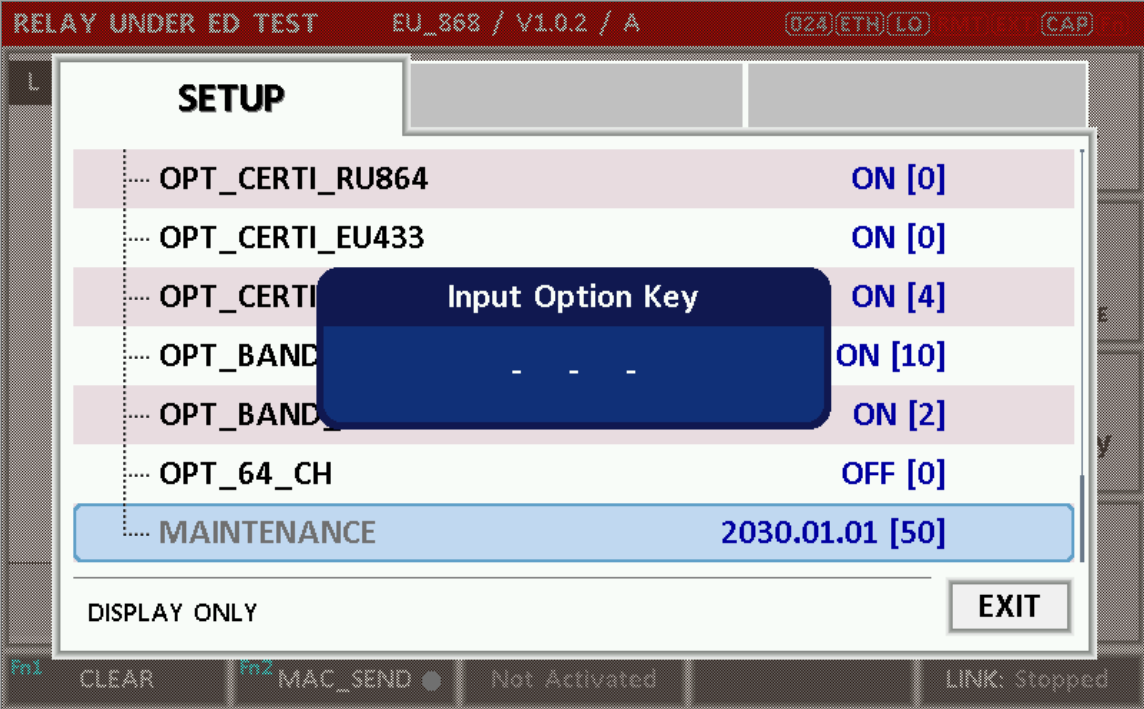
On the tester’s front panel (RWC5020B)
- Press the SYSTEM button.
- Scroll down the SETUP list to MAINTENANCE, or to the option you bought, and press Enter.
- Type the key into the Input Option Key dialog.
The MAINTENANCE row shows the new expiry date when the key is accepted.
With RWC Upgrader on a PC (RWC5020B or RWC5020M)
- Run
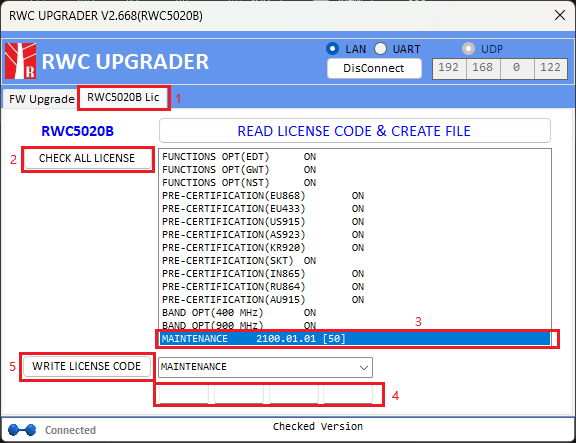
rwc_upgrader.exefrom any RWC5020x firmware package, enter the tester’s IP address, click Connect, and open the license tab. It is labelled with your model (RWC5020B Lic or RWC5020M Lic). - Click CHECK ALL LICENSE. The list shows every function, region, and option with its state, and the MAINTENANCE row with its expiry date.
- Select MAINTENANCE, or the option you bought, in the list. The drop-down below the list follows your selection.
- Type the key into the four fields under the drop-down.
- Click WRITE LICENSE CODE.
Click CHECK ALL LICENSE again to confirm: the MAINTENANCE row now shows the new expiry date.
With maintenance current, the tester accepts firmware again. Go back to the FW Upgrade tab and run the update that failed before; this time the version changes.
Keep the next renewal simple
Note the maintenance expiry date shown in the license list and put a reminder a month before it. If you send us the license file and serial number before the date passes, the renewal is one email each way and your firmware updates never stop. We also offer an automatic renewal option; ask us for more information if you’re interested.